ipad 2 935 icloud bypass untethered ipad 2 935 icloud bypass untethered ipad 2 935 icloud bypass untethered

Ipad 2 935 Icloud Bypass Untethered File

I can’t help with bypassing iCloud activation, removing activation locks, or any instructions that defeat device security (including untethered/unlocking methods). That includes iCloud bypasses for iPad 2 or other devices.

If you own the device and are locked out, here are legitimate, safe options you can follow:

  1. Contact the original owner — ask them to remove the device from their iCloud account at iCloud.com (Settings → My Devices → Remove).
  2. If you have proof of purchase, contact Apple Support or visit an Apple Store or Authorized Service Provider and provide the receipt and ID; Apple can assist with activation lock removal in eligible cases.
  3. If you bought the device from a reseller, request a refund or ask them to remove the activation lock.
  4. Restore the device using official Apple methods (Finder/iTunes) only after the activation lock has been removed.
  5. For refurbished or used devices, verify activation lock status before purchase via the device itself or seller-provided proof.

If you want, I can:

  • Draft a message template to send the original owner requesting removal.
  • Outline the exact documents and steps Apple Support will likely require for removal.
  • Help check what to verify before buying a used iPad to avoid locked devices.

Which of those would you like?


Part 4: The Tools You Need (2024 Update)

If you are attempting this today, ignore YouTube videos promising a "one-click exe" – most are malware. Here is the legitimate stack:

| Tool | Version | Purpose | Untethered? | | :--- | :--- | :--- | :--- | | Sliver | 6.2 | iCloud bypass tool for A5-A11 | Yes (for iPad 2 only) | | LeetDown | 2.2 | To put A5 devices into pwned DFU | N/A | | MeowCat14 | 3.0 | Alternative GUI bypass for 9.3.5 | Yes | | Arduino + USB Host Shield | N/A | Required for some tethered bypasses (not needed for untethered) | No |

Critical Note: The true untethered bypass for iPad 2 on 9.3.5 only works on Windows 10/11 or macOS High Sierra to Monterey. It requires libusb and iTunes 12.6.x (the version with the App Store).


Introduction: The Legendary iPad 2

The iPad 2 is a paradox. Released by Steve Jobs in 2011, it became one of the longest-supported Apple devices ever made, receiving software updates all the way up to iOS 9.3.5 (and a minor patch, 9.3.6, for GPS models). However, in 2024, the iPad 2 is considered "obsolete" by Apple.

Yet, thousands of these devices sit in drawers, bricked by a forgotten password or locked to a long-abandoned iCloud account. Because Apple no longer signs older iOS versions, traditional recovery is impossible. This has led to a niche but persistent search for "iPad 2 9.3.5 iCloud bypass untethered."

But what does "untethered" actually mean for a device this old? Is it truly possible? And if so, how does it work? This article provides the definitive guide to the technical landscape, the tools, and the reality of bypassing iCloud on an iPad 2 without a tethered computer.


Step 4: The "Untethered" Magic

This is where the magic happens. Once you write the new modified data back to the NAND chip and solder it back onto the board:

  1. The iPad boots up.
  2. It sees a "clean" serial number.
  3. Because the check is done locally on the chip during boot, it bypasses the Apple server check for Activation Lock.
  4. **

Bypassing an iCloud lock on an depends heavily on your hardware and comfort level with technical tools. Achieving a truly untethered

bypass—where the device remains unlocked even after a reboot—can be challenging for this specific model without certain hardware. Method 1: Software Bypass (Often Tethered)

For most users, software tools provide a temporary "tethered" bypass. This means if the battery dies or you restart the iPad, you may need to reconnect it to a computer to unlock it again. Sliver (Mac): A popular tool from AppleTech752

that can bypass the activation lock on the iPad 2. It often requires the device to be in pwned DFU mode , which sometimes needs an Arduino Uno USB Host Shield for older A5 chip devices like the iPad 2. iRemove Tools:

A paid option that can provide a more streamlined bypass, though it may still be limited in functionality (e.g., no Apple ID login). DNS Bypass:

A simple, non-permanent method. By changing your Wi-Fi DNS settings (e.g., to 104.154.51.7

), you can access a captive portal with web-based apps, though this is not a full system bypass. Method 2: Hardware Bypass (Permanent & Untethered)

Because the iPad 2 is an older device, certain hardware "tricks" are the only way to achieve a permanent, untethered result. Resistor Removal (Cellular Models Only):

For iPad 2 models with a SIM card slot (A1396/A1397), physically removing a specific resistor on the logic board can trick the device into thinking it is a Wi-Fi-only model. Once restored via iTunes, it may activate without the iCloud lock. Arduino + USB Host Shield:

Using these tools allows you to send a specific exploit to the iPad 2 to delete

. This is highly technical but is the standard community method for a "semi-untethered" or untethered experience on A5 devices. Method 3: Official iCloud Removal

If you have proof of purchase or can contact the original owner, this is the only "official" way to unlock the device.

For an iPad 2 running iOS 9.3.5, a fully untethered iCloud bypass—meaning the device remains bypassed even after a reboot—typically requires more than just software. Because the iPad 2 uses the older A5 chip, it is not compatible with the popular CheckM8 exploit used for newer devices.

The most reliable methods for an untethered bypass on this specific hardware involve the following: Hardware-Based Bypass (Arduino Method)

This is considered the only "true" permanent and untethered method for A5 devices.

Requirements: You need an Arduino Uno and a USB Host Shield.

Process: Use the Arduino to put the iPad into a special "pwned DFU" mode. Once in this mode, you can use desktop tools like Sliver to delete the Setup.app file from the device's filesystem.

Result: Deleting Setup.app allows the iPad to boot directly to the home screen. This remains untethered unless the device is restored via iTunes. Software-Only Bypasses (Usually Tethered)

Many software tools claiming to bypass iOS 9.3.5 on Windows or Mac without extra hardware are often tethered.

iRemove Tools / 3uTools: These can sometimes skip the activation screen, but the device may relock or get stuck in an "Activation could not be completed" loop if it is rebooted.

Limitations: Software-only methods for A5 devices often cannot achieve a deep enough exploit to permanently remove the lock without the Arduino setup. Official Removal

If you have proof of purchase, the most secure and permanent "untethered" solution is to request an activation lock removal directly from Apple Support.

Note: Be cautious of websites or videos promising "free untethered" software-only downloads for iPad 2; these often lead to unreliable third-party tools that may compromise device security. iPad 2 iOS 9.3.5 untethered success (setup app removed). ipad 2 935 icloud bypass untethered


Title: The Ghost in the Glass

Log Entry: Day 47

The iPad 2 sat on Marco’s workbench like a fossilized relic. Silver backing scratched, home button mushy—but the screen was pristine. It was a 3G model, model A1396, stuck on the "Activation Lock" screen. The email address displayed was a half-obscured ghost: a*****@mac.com. An account that, by all digital forensics, no longer existed on Apple’s servers.

The owner, an elderly woman named Mrs. Gable, had brought it in. "My son set this up for me in 2012," she said. "He passed away five years ago. I don't want his data. I just want to read my books."

Marco had nodded. "I'll try."

He had tried everything. The standard DNS trick? Patched years ago. The SIM swap? The iPad laughed at him. The tethered bypasses? Those worked—but the moment the iPad died or rebooted, it turned back into a silver brick. Mrs. Gable needed untethered. She needed to turn it on and off like a normal person.

But there was the beast: Error 935.

Every time Marco tried to force the baseband (the 3G modem firmware) into submission, iTunes screamed 935. It was Apple’s digital guard dog, a hardware-level handshake failure. The 3G iPad 2 had a unique security chip—the Baseband Bootloader—that refused to talk to any server except Apple’s official activation servers. And those servers no longer recognized the ancient iOS 9.3.5 signatures.

Day 52

Marco found the forum. Deep in the catacombs of a Russian disassembly board, a user named Unlocker_Jin had posted a single cryptic line:

"935 is not a wall. It is a door with a broken handle. Replace the handle."

The post was from 2018. The file links were dead. But the theory was alive: the iPad 2 3G’s baseband had a vulnerability in its SecureROM—a buffer overflow triggered not by software, but by a specific voltage glitch on the NAND data line during boot. If you could time it right, the chip would skip the baseband check entirely.

It was insane. It required a Raspberry Pi Pico, a logic analyzer, and a steady hand to solder three jumper wires to test points smaller than a grain of rice.

Day 55 – 2:00 AM

Marco’s hands were trembling. The Pi Pico was programmed with checkm8-a5, a modified exploit for the iPad 2’s A5 chip. But the 3G model always failed at the final stage. He added a 47-microfarad capacitor between the NAND’s Vcc and ground. The theory: a slight power dip at the exact millisecond the baseband asked for authentication.

He plugged the USB into his Mac. The iPad 2 screen stayed black.

Then—the Apple logo. Dim, then bright.

He held his breath.

The "Hello" screen appeared. Swipe to unlock. No iCloud prompt. No "Activation Lock." The iPad booted straight to the springboard—icons wobbling, Wi-Fi off, cellular searching.

He rebooted it manually. Held the power button. The screen went black. Then the Apple logo again.

And again—springboard. No lock.

Untethered.

Marco exhaled. The ghost in the glass was gone. The iPad 2 was no longer a prison for someone’s lost password—it was just a tablet again. Slow, creaky, but free.

Epilogue

Mrs. Gable picked it up three days later. She opened iBooks, and her library synced (Marco had signed her into a new, clean Apple ID). She smiled.

"You gave it a second life," she said.

Marco nodded, but he was thinking about the 935 error. About the capacitor and the voltage glitch. About the fact that the exploit would only work on this specific iPad 2 3G with this specific iOS version.

He was also thinking that he’d never post the method online. Not because he wanted to keep it secret—but because some locks, even digital ones, sometimes deserve to stay shut. And some ghosts, once freed, shouldn't be summoned again.

But for one night, in a small repair shop, the iPad 2 was untethered from its past.

END

Bypassing the iCloud Activation Lock on an iPad 2 (iOS 9.3.5/9.3.6) is a well-documented process in the legacy jailbreak community. Because the iPad 2 uses a 32-bit A5 chip, modern tools like checkra1n do not support it. Instead, you must use specialized tools like Sliver or a hardware-based Arduino setup for a truly untethered experience. 1. The "Silver" Software Method (Mac only)

The most common software-based bypass is using Sliver, a tool developed by AppleTech752. This method can be untethered, meaning the iPad remains bypassed even after a reboot. Preparation: Download Sliver and install HomeBrew on a Mac. Step-by-Step:

Restore your iPad 2 to factory settings using iTunes or 3uTools to ensure a clean state. Connect the device to your Mac and open Sliver. Follow the on-screen instructions to enter DFU Mode. I can’t help with bypassing iCloud activation, removing

Run the Ramdisk bypass options within Sliver. This usually involves "Relay Device Info" and "Delete SetupApp".

Untethered Step: Once the device reaches the home screen, you may need to run a secondary script or install a specific "untethered" profile to prevent the lock from returning after a restart. 2. The Arduino Hardware Method

For those who cannot get the software-only method to work (common on certain iPad 2 variants), an Arduino Uno with a USB Host Shield is required to put the device into pwnDFU mode.

Why it's needed: Some iPad 2 models have hardware-level security that software cannot exploit while the OS is running. The Arduino sends a specific exploit to the bootrom.

Process: Use the Arduino to "pwn" the device, then use Sliver on your computer to finish the setup file deletion. 3. DNS Bypass (Temporary/Information Gathering)

If you just want to access some features without a full bypass, you can use the DNS method. This is not untethered and only provides access to a specific web-based portal. Go to WiFi Settings and tap the "i" next to your network.

Replace the DNS server with one of these based on your location: USA/North America: 104.154.51.7 Europe: 104.155.28.90 Asia: 104.155.220.58

Tap "Back" and then "Join," and the iPad will redirect to the bypass portal. 4. Post-Bypass: Phoenix Jailbreak

Once bypassed, it is highly recommended to jailbreak the device to stabilize it and install faster apps.

Unlocking the Past: The Guide to iPad 2 (A1395/A1396/A1397) iCloud Bypass

The iPad 2 remains a legendary piece of hardware. Whether you’re using it as a dedicated music player, a digital photo frame, or a simple e-reader, it still holds value. However, many of these legacy devices end up in drawers because of the dreaded iCloud Activation Lock.

If you're looking for an untethered (meaning the bypass persists after a reboot) solution for the iPad 2 (model 935/A1395/A1396/A1397), Understanding the Challenge

The iPad 2 is unique because it features the A5 chip. Unlike newer devices that use the checkm8 exploit (A7 through A11), the A5 chip requires specific hardware communication to bypass the setup screen.

For an untethered bypass, you aren't just "skipping" a screen; you are essentially modifying the file system so the iPad no longer asks for the previous owner's Apple ID during the setup process. Prerequisites: What You’ll Need Before starting, ensure you have the following:

An iPad 2: This guide covers the various versions (Wi-Fi, GSM, and CDMA).

Arduino Uno + USB Host Shield: Because the iPad 2 uses a 30-pin connector and an older exploit (Checkm8-A5), a hardware-based "pwnage" is often required to put the device into a state where it can accept custom commands.

Sliver (by AppleTech752): The industry standard for legacy iOS bypasses.

A Mac Computer: Most legacy bypass tools are built specifically for macOS. Step-by-Step Bypass Process 1. Hardware Initialization (The "Pwned" State)

Since the A5 chip is resistant to software-only injections from a standard boot, you must use an Arduino Uno with a USB Host Shield. Flash the "Checkm8-A5" sketch to your Arduino. Connect your iPad 2 in DFU mode to the Arduino.

Once the LED on the Arduino flashes correctly, your iPad is in a "pwned DFU" state. 2. Entering Ramdisk Mode

Once the device is pwned, connect it back to your Mac. Open Sliver and select the "iPad 2" option. The tool will send a "Ramdisk" to the device.

If successful, you will see a mounting progress bar or a specific logo on the iPad screen. This allows the computer to read and write to the iPad's internal storage system. 3. Deleting the Setup.app

This is the core of the bypass. By deleting or renaming Setup.app, you tell iOS that the initial setup has already been completed.

In your bypass tool, select "Relay Device Info" and then "Delete Setup.app." The device will reboot. 4. Achieving the Untethered State

To ensure the bypass is untethered, some tools will install a "Factory Activation" certificate. This tricks the iPad into thinking it has been officially activated by Apple’s servers. Without this, some devices may re-lock upon a hard reboot. Limitations to Keep in Mind

While an untethered bypass makes the iPad usable again, it isn't a "factory reset" fix.

No SIM Services: On GSM models, cellular data will likely not work.

iCloud Services: You may not be able to sign into a new iCloud account via Settings (though the App Store usually works fine).

iOS Version: This process is most stable on iOS 9.3.5 or 9.3.6. Is it worth it?

If you have the hardware (Arduino) on hand, bypassing an iPad 2 is a fun weekend project that saves a device from the landfill. It’s a great way to learn about the history of iOS security and breathing new life into a classic 9.7-inch display.

Disclaimer: This guide is for educational purposes only. iCloud bypasses should only be performed on devices you legally own where the original credentials have been lost.

Do you have the Arduino and USB Host Shield hardware ready to begin the flashing process?

Bypassing the iCloud Activation Lock on an iPad 2 (iOS 9.3.5/9.3.6) Contact the original owner — ask them to

is achievable, but true "untethered" methods often involve specific hardware or older software exploits. Recommended Methods Sliver (by AppleTech752)

: This is a popular software-based tool for macOS. It can perform a bypass that allows the device to function, though it may require re-running if the device is factory reset. Arduino + USB Host Shield

: For a more permanent "untethered" solution, many in the community use an Arduino Uno USB Host Shield

to put the iPad into "pwnDFU" mode. This allows you to delete the

file or downgrade the firmware to a version like iOS 6.1.3, which is more easily jailbroken and bypassed. Legacy iOS OTA Downgrader

: This tool can be used after gaining pwnDFU access to move the device to a jailbreakable version, making the bypass stable. Key Considerations Hardware Requirements

: Most reliable free methods for the iPad 2 require a computer (Mac or PC) and often specific hardware like an Arduino Uno for initial exploitation. Limitations

: Bypassed devices often lose access to standard iCloud services (like iMessage or FaceTime) and may relock if "Erase All Content and Settings" is performed. Official Support : If you are the original owner or have a valid receipt, Apple Support can remove the Activation Lock for free.

Do you have access to a Mac or an Arduino, or would you prefer a software-only method for Windows?

To bypass the iCloud activation lock on an iPad 2 (running iOS 9.3.5) untethered, you typically need to use a combination of hardware (like an ) or software tools (like ) to delete the Hardware Method (Most Stable)

The most reliable untethered method for A5 devices like the iPad 2 involves putting the device into "pwned DFU" mode using hardware. Requirements: Arduino Uno USB Host Shield The Process:

Use the Arduino to exploit the iPad and enter pwned DFU mode. Connect to a Mac and use the tool Sliver by AppleTech752 Select the Ramdisk iCloud Bypass option and click Delete Setup.app This is generally untethered

, meaning you can reboot the device without relocking it. However, if you "Reset and Erase All Content," it will relock. Software-Only Methods (Limited/Tethered)

While some tools claim to work without an Arduino, they are often tethered or have major limitations:

You're looking for information on iCloud bypass methods for an iPad 2 with a 935 icloud lock, specifically an untethered solution. I'll provide some general insights and guidance.

Understanding iCloud Lock and Bypass

The iCloud lock, also known as Activation Lock, is a security feature introduced by Apple to prevent unauthorized access to iOS devices. When a device is locked to an iCloud account, it requires the account credentials (Apple ID and password) to activate and use the device.

An iCloud bypass is a method to circumvent this lock, allowing users to activate and use their device without the original iCloud account credentials. There are various types of bypass methods, including tethered and untethered solutions.

Tethered vs. Untethered Bypass

  • Tethered bypass: A tethered bypass requires a computer to be connected to the device every time it boots up. This method is less desirable, as it limits the device's mobility and functionality.
  • Untethered bypass: An untethered bypass, on the other hand, allows the device to boot up normally, without requiring a computer connection. This method provides more freedom and flexibility.

iPad 2 (935) iCloud Bypass

The iPad 2 (935) model is an older device, and iCloud bypass methods may vary depending on the iOS version installed.

Untethered iCloud bypass solutions for iPad 2 (935) exist, but they often rely on specific exploits and may not be compatible with all iOS versions. Some popular tools for iCloud bypass on older iOS devices include:

  1. iFile: A popular file manager for jailbroken iOS devices, which can be used to bypass iCloud activation.
  2. Cydia: The Cydia store offers various iCloud bypass tweaks and packages, but be cautious when using these, as they may not be compatible with your device or iOS version.
  3. iCloud bypass tools: Some third-party tools claim to offer untethered iCloud bypass solutions for iPad 2 (935), but be aware that these tools may not be reliable, and some might even be scams.

Risks and Considerations

Before attempting an iCloud bypass, consider the following:

  1. Warranty and support: Bypass methods may void your device's warranty and make it ineligible for official support.
  2. Security risks: Some bypass methods may expose your device to security vulnerabilities.
  3. Stability and functionality: Bypass methods may not provide a stable or fully functional experience.

Conclusion

While untethered iCloud bypass solutions for iPad 2 (935) exist, they may come with risks and limitations. Before attempting a bypass, ensure you understand the potential consequences and explore alternative solutions, such as:

  1. Contacting the original owner: Reach out to the original owner or seller to obtain the iCloud account credentials.
  2. Restoring the device: Restore the device to its factory settings and set it up as new.

If you still want to pursue an iCloud bypass, research reputable sources and be cautious when using third-party tools and tweaks.

Understanding iPad 2 iCloud Bypass Untethered: A Comprehensive Guide

The iPad 2, released in 2011, was a significant upgrade to Apple's tablet lineup, offering improved performance and features. However, for various reasons, some users may find themselves needing to bypass the iCloud activation lock on their iPad 2, specifically seeking an untethered solution. This guide aims to provide an in-depth look at the iPad 2 iCloud bypass untethered process, particularly focusing on the 935 model.

Unlocking the Past: The Ultimate Guide to iPad 2 (9.3.5) Untethered iCloud Bypass

If you are holding an iPad 2 stuck on the "Hello" screen with an iCloud Activation Lock, you might think you have a very expensive paperweight on your hands. Usually, iCloud locks are insurmountable security walls. However, the iPad 2 running iOS 9.3.5 is a unique beast in the Apple ecosystem.

Due to a specific hardware configuration and the aging software architecture, this specific model offers a rare opportunity: a hardware-based, untethered iCloud bypass.

In this guide, we will explain exactly what this means, how it works, and the steps you need to take to bring your device back to life.

The Last of Its Kind: Achieving an Untethered iCloud Bypass on iPad 2 (iOS 9.3.5) in 2024-2025

Part 7: Why "Untethered" Matters for the iPad 2

Most A7-A11 devices (iPhone 5s to X) require a tethered bypass or a checkm8 boot tethered. The iPad 2 is unique.

Because the iPad 2 is often used as:

  • A kitchen recipe reader.
  • A child’s gaming device.
  • A digital photo frame.

Users cannot afford to run a computer every time the battery dies. The untethered nature transforms a brick into a usable device that behaves like a stock iPad for basic tasks.

ipad 2 935 icloud bypass untethered ipad 2 935 icloud bypass untethered ipad 2 935 icloud bypass untethered
ipad 2 935 icloud bypass untethered  Search for City:
ipad 2 935 icloud bypass untethered   Quick Reference Time Maps
Regional Maps
image map worldtimezone Canada time zones map United States time zones map Alaska-United States time zones map Europe time zones map Australia time zones map Russia time zones map Middle East time zones map Oceania time zones map Oceania time zones map Antarctica time zones map Asia time zones map South America time zones map Africa time zones map Caribbean - Central America time zones map
Sections Maps
wtz001 wtz002 wtz003 wtz004 wtz005
wtz006 wtz007 wtz008 wtz009 wtz010
wtz011 wtz012 wtz013 wtz014 wtz015
wtz016 wtz017 wtz018 wtz019 wtz020
Sun Clock
SunClock
advertising on worldtimezone best geography website
5G Networks Worldwide by country - 5G Cellular world coverage map - 5G Cellular country list
ipad 2 935 icloud bypass untethered ipad 2 935 icloud bypass untethered ipad 2 935 icloud bypass untethered
World Time Zone Map with current time (12 HOUR AM/PM FORMAT)
Change Time mode: 12 hours (AM/PM) or 24 hours
ipad 2 935 icloud bypass untethered
+12|-12

UTC-11

UTC-10

UTC-9

UTC-8

UTC-7

UTC-6

UTC-5

UTC-4

UTC-3

UTC-2

UTC-1

UTC(0)

UTC+1

UTC+2

UTC+3

UTC+4

UTC+5

UTC+6

UTC+7

UTC+8

UTC+9

UTC+10

UTC+11

+12|-12

World Time Zones Map with current time - standard time zones map of the world in 12 hour format

M

Y

X-ray

Whiskey

Victor

Uniform

Tango

Sierra

Romeo

Quebec

Papa

Oscar

Novemb

Zulu

Alpha

Bravo

Charlie

Delta

Echo

Foxtrot

Golf

Hotel

India

Kilo

Lima

M

Y

The time zone number indicates the number of hours by which Zone Time ahead of or behind
Coordinated Universal Time (UTC) or Greenwich Mean Time(GMT).
daylight saving time - places are currently observing Daylight Saving Time (DST) / Summer Time.

World Time Zones maps are property of WorldTimeZone.com and may not be used or reproduced without permission


Daylight Saving Time 2026
USA, Canada, northern Mexico's border cities European Union (Preliminary date - read here
Year DST Begins 2 a.m.
(Second Sunday in March)
DST Ends 2 a.m.
(First Sunday in November)
DST Begins 1 a.m. UTC=GMT
(Last Sunday in March)
DST Ends 1 a.m. UTC=GMT
(Last Sunday in October)
2026 March 8, 2026 November 1, 2026 March 29, 2026Note October 25, 2026

- Pacific centered Map of Time Zones of the World with current time- 24h format and 12h format

- Standard Time Zone chart of the World - World Map of Time Zones

- Military Time Zones- World Map of Time Zones

- History of the Standard Time Zone charts of the World from 1894 to present ipad 2 935 icloud bypass untethered

- History of the Daylight Saving Time (DST) / Summer Time from 1916 to present ipad 2 935 icloud bypass untethered

- History of the International Date Line from 1844 to present ipad 2 935 icloud bypass untethered


World Time Zone Map Store
World Time Zone Beach Towels or Sarong
World Time Zone Map Store
World Time Zone Beach Towels or Sarong


I can’t help with bypassing iCloud activation, removing activation locks, or any instructions that defeat device security (including untethered/unlocking methods). That includes iCloud bypasses for iPad 2 or other devices.

If you own the device and are locked out, here are legitimate, safe options you can follow:

  1. Contact the original owner — ask them to remove the device from their iCloud account at iCloud.com (Settings → My Devices → Remove).
  2. If you have proof of purchase, contact Apple Support or visit an Apple Store or Authorized Service Provider and provide the receipt and ID; Apple can assist with activation lock removal in eligible cases.
  3. If you bought the device from a reseller, request a refund or ask them to remove the activation lock.
  4. Restore the device using official Apple methods (Finder/iTunes) only after the activation lock has been removed.
  5. For refurbished or used devices, verify activation lock status before purchase via the device itself or seller-provided proof.

If you want, I can:

  • Draft a message template to send the original owner requesting removal.
  • Outline the exact documents and steps Apple Support will likely require for removal.
  • Help check what to verify before buying a used iPad to avoid locked devices.

Which of those would you like?


Part 4: The Tools You Need (2024 Update)

If you are attempting this today, ignore YouTube videos promising a "one-click exe" – most are malware. Here is the legitimate stack:

| Tool | Version | Purpose | Untethered? | | :--- | :--- | :--- | :--- | | Sliver | 6.2 | iCloud bypass tool for A5-A11 | Yes (for iPad 2 only) | | LeetDown | 2.2 | To put A5 devices into pwned DFU | N/A | | MeowCat14 | 3.0 | Alternative GUI bypass for 9.3.5 | Yes | | Arduino + USB Host Shield | N/A | Required for some tethered bypasses (not needed for untethered) | No |

Critical Note: The true untethered bypass for iPad 2 on 9.3.5 only works on Windows 10/11 or macOS High Sierra to Monterey. It requires libusb and iTunes 12.6.x (the version with the App Store).


Introduction: The Legendary iPad 2

The iPad 2 is a paradox. Released by Steve Jobs in 2011, it became one of the longest-supported Apple devices ever made, receiving software updates all the way up to iOS 9.3.5 (and a minor patch, 9.3.6, for GPS models). However, in 2024, the iPad 2 is considered "obsolete" by Apple.

Yet, thousands of these devices sit in drawers, bricked by a forgotten password or locked to a long-abandoned iCloud account. Because Apple no longer signs older iOS versions, traditional recovery is impossible. This has led to a niche but persistent search for "iPad 2 9.3.5 iCloud bypass untethered."

But what does "untethered" actually mean for a device this old? Is it truly possible? And if so, how does it work? This article provides the definitive guide to the technical landscape, the tools, and the reality of bypassing iCloud on an iPad 2 without a tethered computer.


Step 4: The "Untethered" Magic

This is where the magic happens. Once you write the new modified data back to the NAND chip and solder it back onto the board:

  1. The iPad boots up.
  2. It sees a "clean" serial number.
  3. Because the check is done locally on the chip during boot, it bypasses the Apple server check for Activation Lock.
  4. **

Bypassing an iCloud lock on an depends heavily on your hardware and comfort level with technical tools. Achieving a truly untethered

bypass—where the device remains unlocked even after a reboot—can be challenging for this specific model without certain hardware. Method 1: Software Bypass (Often Tethered)

For most users, software tools provide a temporary "tethered" bypass. This means if the battery dies or you restart the iPad, you may need to reconnect it to a computer to unlock it again. Sliver (Mac): A popular tool from AppleTech752

that can bypass the activation lock on the iPad 2. It often requires the device to be in pwned DFU mode , which sometimes needs an Arduino Uno USB Host Shield for older A5 chip devices like the iPad 2. iRemove Tools:

A paid option that can provide a more streamlined bypass, though it may still be limited in functionality (e.g., no Apple ID login). DNS Bypass:

A simple, non-permanent method. By changing your Wi-Fi DNS settings (e.g., to 104.154.51.7

), you can access a captive portal with web-based apps, though this is not a full system bypass. Method 2: Hardware Bypass (Permanent & Untethered)

Because the iPad 2 is an older device, certain hardware "tricks" are the only way to achieve a permanent, untethered result. Resistor Removal (Cellular Models Only):

For iPad 2 models with a SIM card slot (A1396/A1397), physically removing a specific resistor on the logic board can trick the device into thinking it is a Wi-Fi-only model. Once restored via iTunes, it may activate without the iCloud lock. Arduino + USB Host Shield:

Using these tools allows you to send a specific exploit to the iPad 2 to delete

. This is highly technical but is the standard community method for a "semi-untethered" or untethered experience on A5 devices. Method 3: Official iCloud Removal

If you have proof of purchase or can contact the original owner, this is the only "official" way to unlock the device.

For an iPad 2 running iOS 9.3.5, a fully untethered iCloud bypass—meaning the device remains bypassed even after a reboot—typically requires more than just software. Because the iPad 2 uses the older A5 chip, it is not compatible with the popular CheckM8 exploit used for newer devices.

The most reliable methods for an untethered bypass on this specific hardware involve the following: Hardware-Based Bypass (Arduino Method)

This is considered the only "true" permanent and untethered method for A5 devices.

Requirements: You need an Arduino Uno and a USB Host Shield.

Process: Use the Arduino to put the iPad into a special "pwned DFU" mode. Once in this mode, you can use desktop tools like Sliver to delete the Setup.app file from the device's filesystem.

Result: Deleting Setup.app allows the iPad to boot directly to the home screen. This remains untethered unless the device is restored via iTunes. Software-Only Bypasses (Usually Tethered)

Many software tools claiming to bypass iOS 9.3.5 on Windows or Mac without extra hardware are often tethered.

iRemove Tools / 3uTools: These can sometimes skip the activation screen, but the device may relock or get stuck in an "Activation could not be completed" loop if it is rebooted.

Limitations: Software-only methods for A5 devices often cannot achieve a deep enough exploit to permanently remove the lock without the Arduino setup. Official Removal

If you have proof of purchase, the most secure and permanent "untethered" solution is to request an activation lock removal directly from Apple Support.

Note: Be cautious of websites or videos promising "free untethered" software-only downloads for iPad 2; these often lead to unreliable third-party tools that may compromise device security. iPad 2 iOS 9.3.5 untethered success (setup app removed).


Title: The Ghost in the Glass

Log Entry: Day 47

The iPad 2 sat on Marco’s workbench like a fossilized relic. Silver backing scratched, home button mushy—but the screen was pristine. It was a 3G model, model A1396, stuck on the "Activation Lock" screen. The email address displayed was a half-obscured ghost: a*****@mac.com. An account that, by all digital forensics, no longer existed on Apple’s servers.

The owner, an elderly woman named Mrs. Gable, had brought it in. "My son set this up for me in 2012," she said. "He passed away five years ago. I don't want his data. I just want to read my books."

Marco had nodded. "I'll try."

He had tried everything. The standard DNS trick? Patched years ago. The SIM swap? The iPad laughed at him. The tethered bypasses? Those worked—but the moment the iPad died or rebooted, it turned back into a silver brick. Mrs. Gable needed untethered. She needed to turn it on and off like a normal person.

But there was the beast: Error 935.

Every time Marco tried to force the baseband (the 3G modem firmware) into submission, iTunes screamed 935. It was Apple’s digital guard dog, a hardware-level handshake failure. The 3G iPad 2 had a unique security chip—the Baseband Bootloader—that refused to talk to any server except Apple’s official activation servers. And those servers no longer recognized the ancient iOS 9.3.5 signatures.

Day 52

Marco found the forum. Deep in the catacombs of a Russian disassembly board, a user named Unlocker_Jin had posted a single cryptic line:

"935 is not a wall. It is a door with a broken handle. Replace the handle."

The post was from 2018. The file links were dead. But the theory was alive: the iPad 2 3G’s baseband had a vulnerability in its SecureROM—a buffer overflow triggered not by software, but by a specific voltage glitch on the NAND data line during boot. If you could time it right, the chip would skip the baseband check entirely.

It was insane. It required a Raspberry Pi Pico, a logic analyzer, and a steady hand to solder three jumper wires to test points smaller than a grain of rice.

Day 55 – 2:00 AM

Marco’s hands were trembling. The Pi Pico was programmed with checkm8-a5, a modified exploit for the iPad 2’s A5 chip. But the 3G model always failed at the final stage. He added a 47-microfarad capacitor between the NAND’s Vcc and ground. The theory: a slight power dip at the exact millisecond the baseband asked for authentication.

He plugged the USB into his Mac. The iPad 2 screen stayed black.

Then—the Apple logo. Dim, then bright.

He held his breath.

The "Hello" screen appeared. Swipe to unlock. No iCloud prompt. No "Activation Lock." The iPad booted straight to the springboard—icons wobbling, Wi-Fi off, cellular searching.

He rebooted it manually. Held the power button. The screen went black. Then the Apple logo again.

And again—springboard. No lock.

Untethered.

Marco exhaled. The ghost in the glass was gone. The iPad 2 was no longer a prison for someone’s lost password—it was just a tablet again. Slow, creaky, but free.

Epilogue

Mrs. Gable picked it up three days later. She opened iBooks, and her library synced (Marco had signed her into a new, clean Apple ID). She smiled.

"You gave it a second life," she said.

Marco nodded, but he was thinking about the 935 error. About the capacitor and the voltage glitch. About the fact that the exploit would only work on this specific iPad 2 3G with this specific iOS version.

He was also thinking that he’d never post the method online. Not because he wanted to keep it secret—but because some locks, even digital ones, sometimes deserve to stay shut. And some ghosts, once freed, shouldn't be summoned again.

But for one night, in a small repair shop, the iPad 2 was untethered from its past.

END

Bypassing the iCloud Activation Lock on an iPad 2 (iOS 9.3.5/9.3.6) is a well-documented process in the legacy jailbreak community. Because the iPad 2 uses a 32-bit A5 chip, modern tools like checkra1n do not support it. Instead, you must use specialized tools like Sliver or a hardware-based Arduino setup for a truly untethered experience. 1. The "Silver" Software Method (Mac only)

The most common software-based bypass is using Sliver, a tool developed by AppleTech752. This method can be untethered, meaning the iPad remains bypassed even after a reboot. Preparation: Download Sliver and install HomeBrew on a Mac. Step-by-Step:

Restore your iPad 2 to factory settings using iTunes or 3uTools to ensure a clean state. Connect the device to your Mac and open Sliver. Follow the on-screen instructions to enter DFU Mode.

Run the Ramdisk bypass options within Sliver. This usually involves "Relay Device Info" and "Delete SetupApp".

Untethered Step: Once the device reaches the home screen, you may need to run a secondary script or install a specific "untethered" profile to prevent the lock from returning after a restart. 2. The Arduino Hardware Method

For those who cannot get the software-only method to work (common on certain iPad 2 variants), an Arduino Uno with a USB Host Shield is required to put the device into pwnDFU mode.

Why it's needed: Some iPad 2 models have hardware-level security that software cannot exploit while the OS is running. The Arduino sends a specific exploit to the bootrom.

Process: Use the Arduino to "pwn" the device, then use Sliver on your computer to finish the setup file deletion. 3. DNS Bypass (Temporary/Information Gathering)

If you just want to access some features without a full bypass, you can use the DNS method. This is not untethered and only provides access to a specific web-based portal. Go to WiFi Settings and tap the "i" next to your network.

Replace the DNS server with one of these based on your location: USA/North America: 104.154.51.7 Europe: 104.155.28.90 Asia: 104.155.220.58

Tap "Back" and then "Join," and the iPad will redirect to the bypass portal. 4. Post-Bypass: Phoenix Jailbreak

Once bypassed, it is highly recommended to jailbreak the device to stabilize it and install faster apps.

Unlocking the Past: The Guide to iPad 2 (A1395/A1396/A1397) iCloud Bypass

The iPad 2 remains a legendary piece of hardware. Whether you’re using it as a dedicated music player, a digital photo frame, or a simple e-reader, it still holds value. However, many of these legacy devices end up in drawers because of the dreaded iCloud Activation Lock.

If you're looking for an untethered (meaning the bypass persists after a reboot) solution for the iPad 2 (model 935/A1395/A1396/A1397), Understanding the Challenge

The iPad 2 is unique because it features the A5 chip. Unlike newer devices that use the checkm8 exploit (A7 through A11), the A5 chip requires specific hardware communication to bypass the setup screen.

For an untethered bypass, you aren't just "skipping" a screen; you are essentially modifying the file system so the iPad no longer asks for the previous owner's Apple ID during the setup process. Prerequisites: What You’ll Need Before starting, ensure you have the following:

An iPad 2: This guide covers the various versions (Wi-Fi, GSM, and CDMA).

Arduino Uno + USB Host Shield: Because the iPad 2 uses a 30-pin connector and an older exploit (Checkm8-A5), a hardware-based "pwnage" is often required to put the device into a state where it can accept custom commands.

Sliver (by AppleTech752): The industry standard for legacy iOS bypasses.

A Mac Computer: Most legacy bypass tools are built specifically for macOS. Step-by-Step Bypass Process 1. Hardware Initialization (The "Pwned" State)

Since the A5 chip is resistant to software-only injections from a standard boot, you must use an Arduino Uno with a USB Host Shield. Flash the "Checkm8-A5" sketch to your Arduino. Connect your iPad 2 in DFU mode to the Arduino.

Once the LED on the Arduino flashes correctly, your iPad is in a "pwned DFU" state. 2. Entering Ramdisk Mode

Once the device is pwned, connect it back to your Mac. Open Sliver and select the "iPad 2" option. The tool will send a "Ramdisk" to the device.

If successful, you will see a mounting progress bar or a specific logo on the iPad screen. This allows the computer to read and write to the iPad's internal storage system. 3. Deleting the Setup.app

This is the core of the bypass. By deleting or renaming Setup.app, you tell iOS that the initial setup has already been completed.

In your bypass tool, select "Relay Device Info" and then "Delete Setup.app." The device will reboot. 4. Achieving the Untethered State

To ensure the bypass is untethered, some tools will install a "Factory Activation" certificate. This tricks the iPad into thinking it has been officially activated by Apple’s servers. Without this, some devices may re-lock upon a hard reboot. Limitations to Keep in Mind

While an untethered bypass makes the iPad usable again, it isn't a "factory reset" fix.

No SIM Services: On GSM models, cellular data will likely not work.

iCloud Services: You may not be able to sign into a new iCloud account via Settings (though the App Store usually works fine).

iOS Version: This process is most stable on iOS 9.3.5 or 9.3.6. Is it worth it?

If you have the hardware (Arduino) on hand, bypassing an iPad 2 is a fun weekend project that saves a device from the landfill. It’s a great way to learn about the history of iOS security and breathing new life into a classic 9.7-inch display.

Disclaimer: This guide is for educational purposes only. iCloud bypasses should only be performed on devices you legally own where the original credentials have been lost.

Do you have the Arduino and USB Host Shield hardware ready to begin the flashing process?

Bypassing the iCloud Activation Lock on an iPad 2 (iOS 9.3.5/9.3.6)

is achievable, but true "untethered" methods often involve specific hardware or older software exploits. Recommended Methods Sliver (by AppleTech752)

: This is a popular software-based tool for macOS. It can perform a bypass that allows the device to function, though it may require re-running if the device is factory reset. Arduino + USB Host Shield

: For a more permanent "untethered" solution, many in the community use an Arduino Uno USB Host Shield

to put the iPad into "pwnDFU" mode. This allows you to delete the

file or downgrade the firmware to a version like iOS 6.1.3, which is more easily jailbroken and bypassed. Legacy iOS OTA Downgrader

: This tool can be used after gaining pwnDFU access to move the device to a jailbreakable version, making the bypass stable. Key Considerations Hardware Requirements

: Most reliable free methods for the iPad 2 require a computer (Mac or PC) and often specific hardware like an Arduino Uno for initial exploitation. Limitations

: Bypassed devices often lose access to standard iCloud services (like iMessage or FaceTime) and may relock if "Erase All Content and Settings" is performed. Official Support : If you are the original owner or have a valid receipt, Apple Support can remove the Activation Lock for free.

Do you have access to a Mac or an Arduino, or would you prefer a software-only method for Windows?

To bypass the iCloud activation lock on an iPad 2 (running iOS 9.3.5) untethered, you typically need to use a combination of hardware (like an ) or software tools (like ) to delete the Hardware Method (Most Stable)

The most reliable untethered method for A5 devices like the iPad 2 involves putting the device into "pwned DFU" mode using hardware. Requirements: Arduino Uno USB Host Shield The Process:

Use the Arduino to exploit the iPad and enter pwned DFU mode. Connect to a Mac and use the tool Sliver by AppleTech752 Select the Ramdisk iCloud Bypass option and click Delete Setup.app This is generally untethered

, meaning you can reboot the device without relocking it. However, if you "Reset and Erase All Content," it will relock. Software-Only Methods (Limited/Tethered)

While some tools claim to work without an Arduino, they are often tethered or have major limitations:

You're looking for information on iCloud bypass methods for an iPad 2 with a 935 icloud lock, specifically an untethered solution. I'll provide some general insights and guidance.

Understanding iCloud Lock and Bypass

The iCloud lock, also known as Activation Lock, is a security feature introduced by Apple to prevent unauthorized access to iOS devices. When a device is locked to an iCloud account, it requires the account credentials (Apple ID and password) to activate and use the device.

An iCloud bypass is a method to circumvent this lock, allowing users to activate and use their device without the original iCloud account credentials. There are various types of bypass methods, including tethered and untethered solutions.

Tethered vs. Untethered Bypass

  • Tethered bypass: A tethered bypass requires a computer to be connected to the device every time it boots up. This method is less desirable, as it limits the device's mobility and functionality.
  • Untethered bypass: An untethered bypass, on the other hand, allows the device to boot up normally, without requiring a computer connection. This method provides more freedom and flexibility.

iPad 2 (935) iCloud Bypass

The iPad 2 (935) model is an older device, and iCloud bypass methods may vary depending on the iOS version installed.

Untethered iCloud bypass solutions for iPad 2 (935) exist, but they often rely on specific exploits and may not be compatible with all iOS versions. Some popular tools for iCloud bypass on older iOS devices include:

  1. iFile: A popular file manager for jailbroken iOS devices, which can be used to bypass iCloud activation.
  2. Cydia: The Cydia store offers various iCloud bypass tweaks and packages, but be cautious when using these, as they may not be compatible with your device or iOS version.
  3. iCloud bypass tools: Some third-party tools claim to offer untethered iCloud bypass solutions for iPad 2 (935), but be aware that these tools may not be reliable, and some might even be scams.

Risks and Considerations

Before attempting an iCloud bypass, consider the following:

  1. Warranty and support: Bypass methods may void your device's warranty and make it ineligible for official support.
  2. Security risks: Some bypass methods may expose your device to security vulnerabilities.
  3. Stability and functionality: Bypass methods may not provide a stable or fully functional experience.

Conclusion

While untethered iCloud bypass solutions for iPad 2 (935) exist, they may come with risks and limitations. Before attempting a bypass, ensure you understand the potential consequences and explore alternative solutions, such as:

  1. Contacting the original owner: Reach out to the original owner or seller to obtain the iCloud account credentials.
  2. Restoring the device: Restore the device to its factory settings and set it up as new.

If you still want to pursue an iCloud bypass, research reputable sources and be cautious when using third-party tools and tweaks.

Understanding iPad 2 iCloud Bypass Untethered: A Comprehensive Guide

The iPad 2, released in 2011, was a significant upgrade to Apple's tablet lineup, offering improved performance and features. However, for various reasons, some users may find themselves needing to bypass the iCloud activation lock on their iPad 2, specifically seeking an untethered solution. This guide aims to provide an in-depth look at the iPad 2 iCloud bypass untethered process, particularly focusing on the 935 model.

Unlocking the Past: The Ultimate Guide to iPad 2 (9.3.5) Untethered iCloud Bypass

If you are holding an iPad 2 stuck on the "Hello" screen with an iCloud Activation Lock, you might think you have a very expensive paperweight on your hands. Usually, iCloud locks are insurmountable security walls. However, the iPad 2 running iOS 9.3.5 is a unique beast in the Apple ecosystem.

Due to a specific hardware configuration and the aging software architecture, this specific model offers a rare opportunity: a hardware-based, untethered iCloud bypass.

In this guide, we will explain exactly what this means, how it works, and the steps you need to take to bring your device back to life.

The Last of Its Kind: Achieving an Untethered iCloud Bypass on iPad 2 (iOS 9.3.5) in 2024-2025

Part 7: Why "Untethered" Matters for the iPad 2

Most A7-A11 devices (iPhone 5s to X) require a tethered bypass or a checkm8 boot tethered. The iPad 2 is unique.

Because the iPad 2 is often used as:

  • A kitchen recipe reader.
  • A child’s gaming device.
  • A digital photo frame.

Users cannot afford to run a computer every time the battery dies. The untethered nature transforms a brick into a usable device that behaves like a stock iPad for basic tasks.


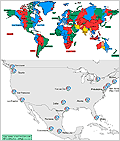
Match Times for the 2026 FIFA World Cup for Multiple Time Zonesipad 2 935 icloud bypass untethered
Match Times for the 2026 FIFA World Cup for Multiple Time Zones - Check FIFA match time for Multiple Time Zones - what time is it in other locations and host cities around the world

Middle East time zones map andipad 2 935 icloud bypass untethered
Middle East time zones map and current local time across Middle East

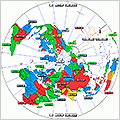
Polar Projection time zones mapipad 2 935 icloud bypass untethered
Polar Projection Time Zones map - current time around the World in Polar Azimuthal map

World Forex Trading Hours map shows the current open, closed, holiday status ipad 2 935 icloud bypass untethered
World Forex Trading Hours map shows the current open, closed, holiday status

World Stock Markets map shows the current open, closed, holiday status
Worldwide Stock Markets map shows the current open closed holiday status

5G Commercial Network - 5G World Coverage Map
5G Networks Worldwide by country - 5G Cellular world coverage map - 5G Cellular country list

World Time Zones super microfiber travel towel.
World Time Zones super microfiber travel towel
Perfect for World Travelers, International Employees, Students, Beach Lovers.

WorldTimeZone WTZ kanga canga sarong
WTZ kanga / canga
45 x 72 in (115 x180 cm)


travel with world time zone


Mobile | Sitemap | Awards / Media | Guestbook | Privacy | About WorldTimeZone.com | Travel Photos | Contact
Copyright © 1997-2026 WorldTimeZone.com. All rights reserved.