Feature: PS2 Save Builder for Android

The Reality Check

There is no official "PS2 Save Builder" app for Android that builds save files from scratch. However, you can manage, convert, and transfer PS2 memory card saves on Android using existing tools.

Monetization & Distribution

The Ultimate Guide to PS2 Save Management on Android

If you are trying to get a save file from the internet (like GameFAQs) onto your Android emulator, you likely need to convert the file format.

Part 2: The Tools You Need (No Root Required)

Since native Android apps for PS2 save building are rare, we must use a hybrid approach. Here is the software stack you will need on your Android device:

Part 6: Building Saves from Scratch (Advanced)

Sometimes, you don't have a save file—you have raw game data (like an icon.sys and BISLPM-12345 folder). To "build" these into a playable save on Android:

  1. Use ZArchiver to navigate to your memory card file (.ps2). Note: You cannot open .ps2 directly; it's a binary block.
  2. Extract the folder structure using mymc:
    ./mymc -x /path/to/Mcd001.ps2 "Kingdom Hearts"
    
  3. Drop your raw files into the extracted folder.
  4. Rebuild using:
    ./mymc -a /path/to/Mcd001.ps2 /path/to/Kingdom\ Hearts/
    

This is the pure definition of "building" a save file.


How It Works Under the Hood (Simplified)

When you open a raw 8MB memory card image:

  1. The builder reads the superblock (sector 0) to locate the directory entry table.
  2. It walks the linked list of directory entries to find each game’s folder.
  3. Inside the folder, it identifies the main save file (B* or BASLUS-20394 etc.) and any icons.
  4. For import, it defragments the card (if needed) and writes blocks, updating the directory chain and free block bitmap.

This is non-trivial because the PS2 memory card has a wear-leveling algorithm and block allocation tables not identical to standard FAT.

Method 1: The "PSV Save Builder" Method (Best for AetherSX2)

Use this if you have a .cbs, .max, or .psu file and need a .psv file.

Required App:

Step 1: Get the Save File

  1. Download your save file on your phone (usually in your Downloads folder).
  2. If the file is inside a .zip or .rar archive, use a file manager (like ZArchiver or Solid Explorer) to extract the file. You should see a file ending in .cbs, .max, or .psu.

Step 2: Convert/Build the Save

  1. Open the PSV Exporter/Importer app.
  2. Tap "Import Save" (or sometimes just a "+" button).
  3. Navigate to your Downloads folder and select your save file (e.g., MGS3.cbs).
  4. The app will process the file and create a folder structure.
  5. You will see a list of files inside the save. Tap "Export to PSV".
  6. Name the file and save it. You now have a .psv file.

Step 3: Load into the Emulator

  1. Open AetherSX2 / NetherSX2.
  2. Long-press the game you want to add the save to.
  3. Select "Import Save" (or go to Settings > Memory Cards).
  4. Navigate to where you saved the .psv file and select it.
  5. The emulator will convert it into its internal memory card format.

Part 4: Troubleshooting Common Android Save Builder Errors

When building saves on Android, things go wrong constantly. Here is how to fix the most common issues.
Ps2 Save Builder Android [ GENUINE | 2026 ]

Powered by the largest digital payment provider in the Middle East and Africa.
Scroll down to view our services

Ps2 Save Builder Android [ GENUINE | 2026 ]

Grow your business online faster with secure, scalable, an innovative payment solutions built for Saudi businesses.
banners
banners

Ps2 Save Builder Android [ GENUINE | 2026 ]

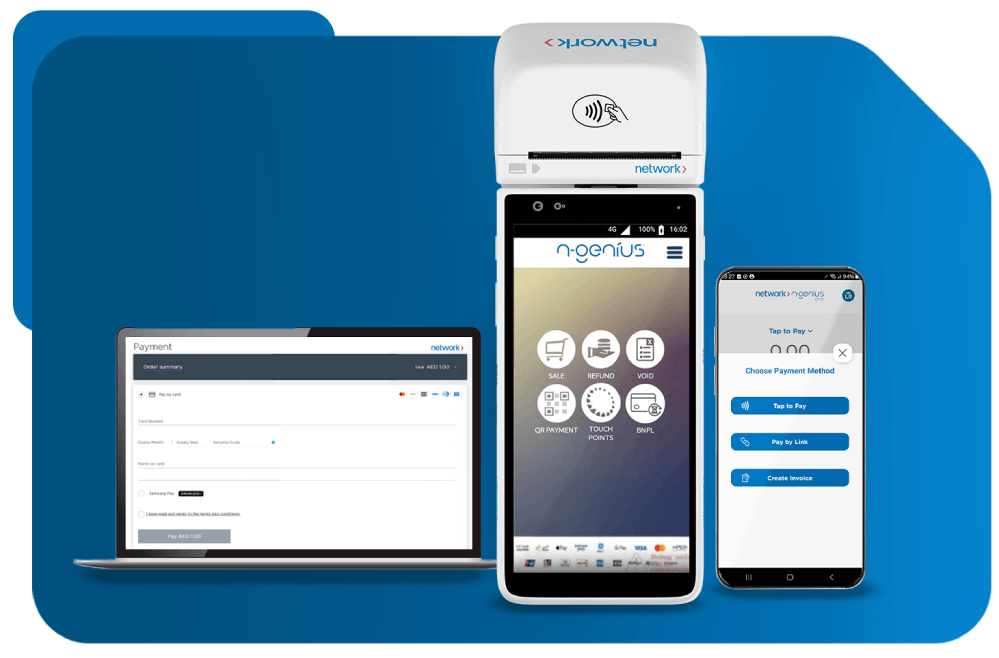
Instant installments on Network POS terminal
banners

Ps2 Save Builder Android [ GENUINE | 2026 ]

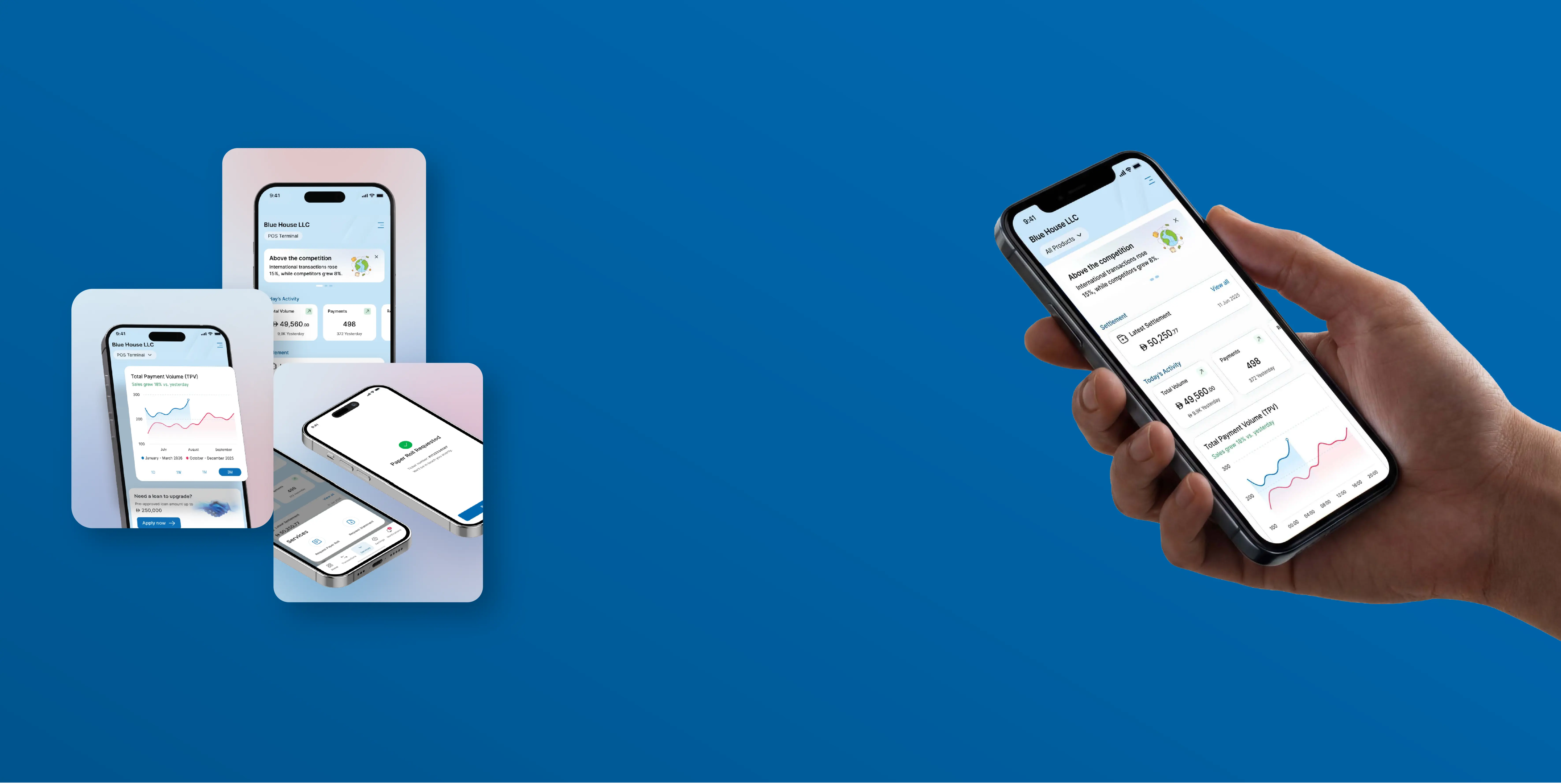
One App, total control.
banners
Scroll down to view our services

We simplify every transaction through
a connected payment ecosystem tailored for growth

We are ready to help you…

Merchant Solutions
Merchant Solutions

Elevate commerce

Our online and in-person payment solutions are designed to heighten customer experiences and accelerate business growth.

Explore More

Processing Solutions

Enrich financial services

We support banks, fintechs and telcos with agile end-to-end solutions that drive engagement and loyalty.

Explore More

Value Added Services

Differentiate payment experiences

Our data analytics, advanced fraud protection, loyalty programs and other value-added offerings take customer experiences and business performance to new heights.

Explore More

Ps2 Save Builder Android [ GENUINE | 2026 ]

Feature: PS2 Save Builder for Android

The Reality Check

There is no official "PS2 Save Builder" app for Android that builds save files from scratch. However, you can manage, convert, and transfer PS2 memory card saves on Android using existing tools.

Monetization & Distribution

The Ultimate Guide to PS2 Save Management on Android

If you are trying to get a save file from the internet (like GameFAQs) onto your Android emulator, you likely need to convert the file format.

Part 2: The Tools You Need (No Root Required)

Since native Android apps for PS2 save building are rare, we must use a hybrid approach. Here is the software stack you will need on your Android device:

Part 6: Building Saves from Scratch (Advanced)

Sometimes, you don't have a save file—you have raw game data (like an icon.sys and BISLPM-12345 folder). To "build" these into a playable save on Android:

  1. Use ZArchiver to navigate to your memory card file (.ps2). Note: You cannot open .ps2 directly; it's a binary block.
  2. Extract the folder structure using mymc:
    ./mymc -x /path/to/Mcd001.ps2 "Kingdom Hearts"
    
  3. Drop your raw files into the extracted folder.
  4. Rebuild using:
    ./mymc -a /path/to/Mcd001.ps2 /path/to/Kingdom\ Hearts/
    

This is the pure definition of "building" a save file.


How It Works Under the Hood (Simplified)

When you open a raw 8MB memory card image:

  1. The builder reads the superblock (sector 0) to locate the directory entry table.
  2. It walks the linked list of directory entries to find each game’s folder.
  3. Inside the folder, it identifies the main save file (B* or BASLUS-20394 etc.) and any icons.
  4. For import, it defragments the card (if needed) and writes blocks, updating the directory chain and free block bitmap.

This is non-trivial because the PS2 memory card has a wear-leveling algorithm and block allocation tables not identical to standard FAT.

Method 1: The "PSV Save Builder" Method (Best for AetherSX2)

Use this if you have a .cbs, .max, or .psu file and need a .psv file.

Required App:

Step 1: Get the Save File

  1. Download your save file on your phone (usually in your Downloads folder).
  2. If the file is inside a .zip or .rar archive, use a file manager (like ZArchiver or Solid Explorer) to extract the file. You should see a file ending in .cbs, .max, or .psu.

Step 2: Convert/Build the Save

  1. Open the PSV Exporter/Importer app.
  2. Tap "Import Save" (or sometimes just a "+" button).
  3. Navigate to your Downloads folder and select your save file (e.g., MGS3.cbs).
  4. The app will process the file and create a folder structure.
  5. You will see a list of files inside the save. Tap "Export to PSV".
  6. Name the file and save it. You now have a .psv file.

Step 3: Load into the Emulator

  1. Open AetherSX2 / NetherSX2.
  2. Long-press the game you want to add the save to.
  3. Select "Import Save" (or go to Settings > Memory Cards).
  4. Navigate to where you saved the .psv file and select it.
  5. The emulator will convert it into its internal memory card format.

Part 4: Troubleshooting Common Android Save Builder Errors

When building saves on Android, things go wrong constantly. Here is how to fix the most common issues.

…built for
business performance

1a Scale & Speed
2b High Availability
3c Data Privacy & Security
4d Local & Global Compliance
5e On-Premises & Multi-Cloud

…built for
business performance

11111111111111111111111111111111qq

… trusted by 240,000+ merchants and
250+ banks, fintechs and telcos

For everyone, everywhere.

Map
30+
years of experience
50+
countries served
260K+
POS & ATMs supported
25M+
credentials managed
2,000+
pool of payment experts
Latest News
News
22 April 2026

Network International appoints Soumia Majumdar-Mears as Group Chief Internal Audit Officer

News
21 April 2026

Network International and WooCommerce announce strategic partnership to accelerate MEA e-commerce

News
25 March 2026

RAKBANK and Network International Complete Merchant Acquiring Transaction in the UAE

Awards & Certifications

Meafinance
Excellence
FICO
Mrm
Dubai Service Excellence
ISAE
SISA
Enterprise
Skea
Dubai Quality
Nilson Report
Operation Bridge
Take your next step
Ready to start your journey with Network, or need our help?
Contact us
Call